


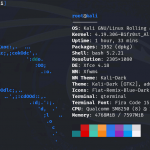


The official crDroid v12.11 update is now available for the POCO X3 Pro (Vayu/Bhima), bringing Android 16 QPR2 with several improvements focused on stability, weather services, and overall system performance. This release also includes fixes for sandbox compatibility and continues to ship with Dolby Atmos and MIUI Camera, making it an excellent choice for users looking for a feature-rich daily driver.
What’s New in crDroid v12.11?
Kernel Toolchain Changes
This release reverts the kernel compilation toolchain back to Clang 21.0. While this isn’t a user-facing feature, reverting to a previous compiler version can improve kernel stability, compatibility, and overall reliability if regressions were introduced by newer toolchains.
Improved OmniJaws Weather
The built-in OmniJaws Weather application has received multiple fixes and usability improvements. Users can also choose a new Meteo weather provider, giving more flexibility when selecting weather data sources.
Better Sandbox Compatibility
Applications that rely on Android’s sandbox environment, including Google Photos, should now work more reliably thanks to compatibility fixes included in this release.
General Stability Improvements
As with every monthly crDroid update, several under-the-hood improvements have been merged to enhance system stability, eliminate minor bugs, and improve the overall user experience. While these changes may not always be immediately visible, they contribute to a smoother and more dependable daily driver.
Official Changelog
- Revert back to Clang 21.0 for kernel compile
- Fixes and improvements for Weather app (OmniJaws)
- Added new Meteo weather provider in Weather settings
- Fixed Sandbox compatibility for certain apps like Photos
- Various other fixes and improvements
Flashing Instructions
Pre-installation
Before flashing the ROM, make sure you have:
- Latest crDroid ROM package
- Latest crDroid Recovery image
- Latest firmware for POCO X3 Pro
- Latest compatible GApps package (optional)
Important: crDroid uses secured FUSE passthrough by default. You must format data once using crDroid Recovery to avoid storage-related storage issues.
Step 1 – Unlock Bootloader
Skip this step if your bootloader is already unlocked.
- Enable Developer Options.
- Link your Mi Account under Mi Unlock Status.
- Unlock the bootloader using the official Mi Unlock Tool.
- Re-enable USB Debugging after unlocking.
Step 2 – Flash Recovery
- Boot into Fastboot Mode.
- Flash the latest crDroid Recovery:
fastboot flash recovery recovery.img
- Boot directly into the newly flashed recovery without booting Android.
Step 3 – Install ROM
For a clean installation:
- Factory Reset → Format Data
- Apply Update → Apply from ADB
- Flash the ROM
- Flash GApps (optional)
- Reboot
For updates:
- Boot into Recovery
- Apply Update via ADB
- Flash the latest ROM
- Reboot
OTA updates can also be installed through:
Settings → System → Update
Notes
- OSS based
- Vanilla build (NikGApps supported)
- SELinux: Enforcing
- Dirty Flash / OTA from previous release is supported
- Dolby Atmos included
- MIUI Camera included
- Custom kernels or modifications may break sensors or camera functionality.
Important Links
Official Website & Changelog:
https://crdroid.net/vayu/12
Installation Guide:
https://crdroid.net/vayu/12
NikGApps:
https://nikgapps.com/crdroid-official
Support Group:
https://t.me/joinchat/5eT6QHJ9nu1kOWZk
Credits
Special thanks to everyone who contributed to this release:
- neobuddy89 – Official maintainer
- crDroid Team
- All open-source contributors and testers
Final Thoughts
crDroid v12.11 is another solid maintenance update that improves stability, weather integration, and compatibility while keeping the clean Android experience that crDroid is known for. Existing users can safely dirty flash or update via OTA, while new users are recommended to perform a clean installation using the latest crDroid Recovery.