


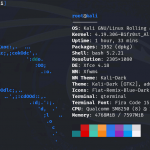


Have you ever wondered what it would be like to run Arch Linux on your Xiaomi Pad 6? Whether you’re a power user, developer, or just curious about squeezing every ounce of performance from your hardware, this guide is for you. This step-by-step tutorial walks you through installing a minimal, bare-bones Arch Linux setup on your Xiaomi Pad 6. It’s not for the faint of heart—you’ll be wiping your device, using fastboot commands, and setting up your system manually. But the reward? A fully functional Linux tablet, ready to be customized your way.
⚠️ WARNING: This is an experimental installation. You will lose all your data. Proceed at your own risk!
Screenshots & Photos:


⚠️ Read Before You Begin
- This guide installs Arch Linux on your Xiaomi Pad 6 using a bare-bones image.
- You’ll need to manually set up many things after installation.
- Only flash userdata and boot partitions. Do NOT touch others—you may brick your tablet!
- This is a singleboot guide. If you want dualboot, ask in the community chat or forums.
📦 Requirements
- Xiaomi Pad 6
- A computer with ADB and Fastboot installed
- A USB-C hub (or USB-C to USB-A adapter)
- USB keyboard
- A second device (like your phone) with USB tethering support
- Basic Linux terminal knowledge
- Backup your data! The following process will wipe your userdata completely.
🧰 Flashing Arch Linux (Singleboot Mode)
1. Download Required Files
- Download the following files:
boot_arch_domin746826.imgarch_rootfs_fastboot_v02.img- [arch-v0.2.7z] (Link to file location)
2. Flash Boot and Userdata
Use these Fastboot commands from your PC:
fastboot flash boot_a boot_arch_domin746826.img
fastboot flash boot_b boot_arch_domin746826.img
fastboot erase dtbo_a
fastboot erase dtbo_b
fastboot flash userdata arch_rootfs_fastboot_v02.img
🚀 First Boot Setup
1. Connect Devices
- Plug in your USB-C hub
- Connect a USB keyboard
- Connect your phone via USB and enable USB Tethering
2. Login Credentials
- Username:
root - Password:
root
🔧 Post-Install Configuration
1. Initialize Pacman Keys
pacman-key --init
pacman-key --populate archlinuxarm
2. Resize Filesystem
Check which partition is labeled arch_rootfs:
blkid | grep arch_rootfs
Typically it’s /dev/sda34, but to be safe, use:
resize2fs /dev/disk/by-label/arch_rootfs
3. Set Up Network
Check your network status:
ip a
ping archlinux.org
Then install and enable NetworkManager:
pacman -Syu
pacman -S networkmanager
systemctl enable NetworkManager.service
🌐 Connect to Wi-Fi
Reboot your device:
reboot
Log back in and connect to Wi-Fi using:
nmcli device wifi connect <SSID> password <your-password>
🎨 Optional: Improve Console Font
Install Terminus font:
pacman -S terminus-font
Edit /etc/vconsole.conf and add:
FONT=ter-232n
📱 Bluetooth Setup (Optional Fix)
Install the BlueZ stack and create a custom systemd service:
Create file: /etc/systemd/system/bt-mac.service
[Unit]
Description=Bluetooth MAC fix
After=bluetooth.service
Requires=bluetooth.service

[Service]
Type=oneshot
ExecStart=/bin/sh -c "/usr/bin/echo 'yes' | /usr/bin/btmgmt --index 0 public-addr 00:1a:7d:da:71:13"
RemainAfterExit=yes
TimeoutStartSec=10

[Install]
WantedBy=multi-user.target
Then run:
systemctl daemon-reload
systemctl enable bt-mac.service
reboot
💡 TODO: Port
bootmacfrom postmarketOS for a cleaner fix.
✅ What Works (Tested)
- ✅ Battery status
- ✅ Sleep mode
- ✅ Bluetooth
- ✅ Brightness controls
- ✅ Charging
- ✅ Display and GPU
- ✅ Touchscreen
- ✅ UFS storage
- ✅ USB
- ✅ Wi-Fi
- ✅ Xiaomi Pen
- ✅ Xiaomi Keyboard
❌ What Doesn’t Work (Yet)
- ❌ Camera
- ❌ Audio
These limitations are similar to what you’d find on postmarketOS.
🧪 Untested Features
Might work, but need testing:
- ⚠️ Sensors
- ⚠️ Fast charging
- ⚠️ Pen charging
If you test any of these, please share results with the community! 😊
🔑 Default Users
root/rootalarm/alarm
❤️ Final Notes
- Kernel Source: vipaoL’s kernel
- RootFS: Arch Linux ARM Generic
🤝 Support & Credit:
- Original Guide by: @domin746826
- Official Telegram Support Group here!
- GitHub Repos: pipa-mainline, pipa-project
- Developers who contributed in developing the Linux kernel for the Xiaomi Pad 6: @adomerle, @vipaoL , @luka177, @Dominik Sitarski, @Danila Tikhonov, @Teguh Sobirin, @lujianhua, @map220v, @maverickjb
Additional thanks to the helpful people at the telegram group “Xiaomi Pad 6 Mainline Linux”: t.me/pipa_mainline
Ask in the community chat for dualboot setup and troubleshooting.
Enjoy Arch Linux on Your Xiaomi Pad 6!
You’re now running a lean, mean, Arch-powered machine on your tablet. Have fun experimenting, and welcome to the bleeding edge! 🐧❤️


Thanks for the comment!
Can someone confirm if banking apps are working?
Network signal strength seems improved